OffLingua / iPhone
Keep OffLingua close for a straightforward text, photo and speech workflow. The translation model runs on your iPhone after download, and the current app is yours through one App Store purchase.
Download on theApp StoreMake translation a familiar place
A dedicated app becomes useful when the steps feel familiar. In OffLingua, the language direction stays at the top and Text, Speech and Photo have their own modes. You can move from a message to a photograph without wondering whether you have opened the right tool.
That is the reason to make room for it on your home screen. A traveller may only need a translator several times a day, but those moments often arrive while something else is happening. A clear destination helps you get from an unfamiliar sentence to a response without losing the thread.
Write the thing you actually want to say
You might be asking where the entrance is, explaining that you will arrive late, or checking whether a table is available. Type your own sentence or paste the text you received. Read the result, copy it, and use it where the conversation is happening.
The original remains visible beside the translated content. That is useful when you need to revisit a word, check that a number is intact or clarify the question. You can swap the language direction when someone replies. Keep phrasing direct, and split a complicated request into shorter sentences when necessary.
Let the photo keep its context
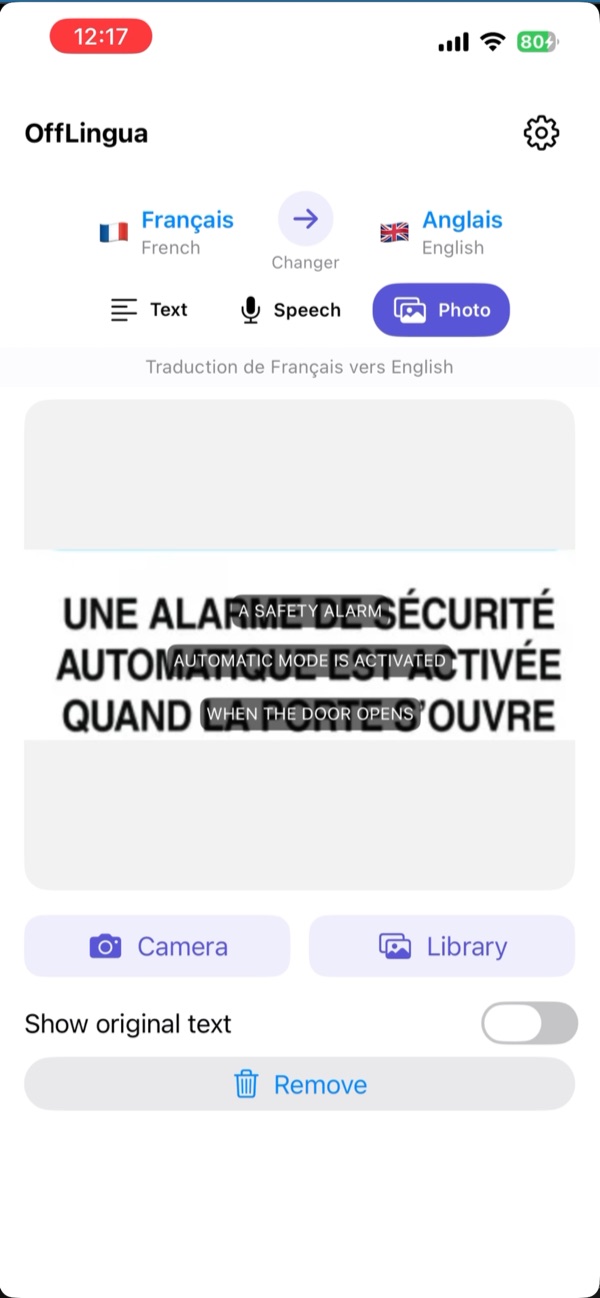
A translated list of words can be hard to match back to a busy notice or a menu. OffLingua’s photo mode puts translated text over the image, so you can connect the words with their position. The original-text control lets you check the source again.
Use a photo from your library or take one with the camera. Think of the image as something you may want to show another person: readable writing, enough context, and as little glare as possible. A translation helps you ask a more specific question, even when the photograph contains something the app has not understood perfectly.
Ask a question aloud
Speech mode records your words and shows the live transcript. Stop recording to translate, then use Listen when spoken output is available. It can help with a short exchange where the other person would rather hear a question than read your screen.
Give the app one clear thought at a time. Check the transcript if a name or a noisy room has confused the recognition. Voice depends on Apple Speech, and offline recognition varies by language and device. Test it in advance. If it is unavailable, typing the same question is still a perfectly useful way to communicate.
Have the model ready before the connection changes
OffLingua downloads its translation model during setup. After that, text and photo translation run on your phone. You can use the app at a station with poor reception, at a café before you have the password, or with connectivity switched off.
The app does not need a separate OffLingua account. Initial downloads and store purchases still require a connection, and some speech-recognition combinations may use Apple’s servers. You can read the privacy page for a plain explanation of these steps, then choose the modes you want to use.
A small habit makes a better travel companion
Before a trip, choose the languages in the searchable picker and try something familiar. Translate a message you wrote yourself. Take a photo of printed text. Try Speech separately with connectivity off. You will get a feel for the speed of your phone and for which inputs work comfortably.
Then put the app somewhere easy to find. OffLingua is a one-time purchase through the App Store; Apple displays the current price and compatibility. The point of carrying it is simple: when a few words stand between you and the next part of the day, you have a familiar place to work them out.
A little preparation before you go
- Choose your source and destination languages in the app.
- Practise with a message and a photo you can check yourself.
- Try Listen and Speech in the languages you need.
- Put OffLingua somewhere easy to reach on your iPhone.
OffLingua
Take the next conversation with you.
Find the app on the App Store. If you need a hand with setup, the OffLingua team is a message away.
App details
This guide is written by the OffLingua team. The App Store has the current offer and requirements; support and privacy explain model downloads and voice services.